How to Use Image Search
Image search lets you identify products by uploading a photo instead of typing a name or UPC. This is especially useful when receiving deliveries with unlabeled cases or when you want to quickly look up an unfamiliar product.
Steps
-
Click Products in the left sidebar to open the Product Catalog.
-
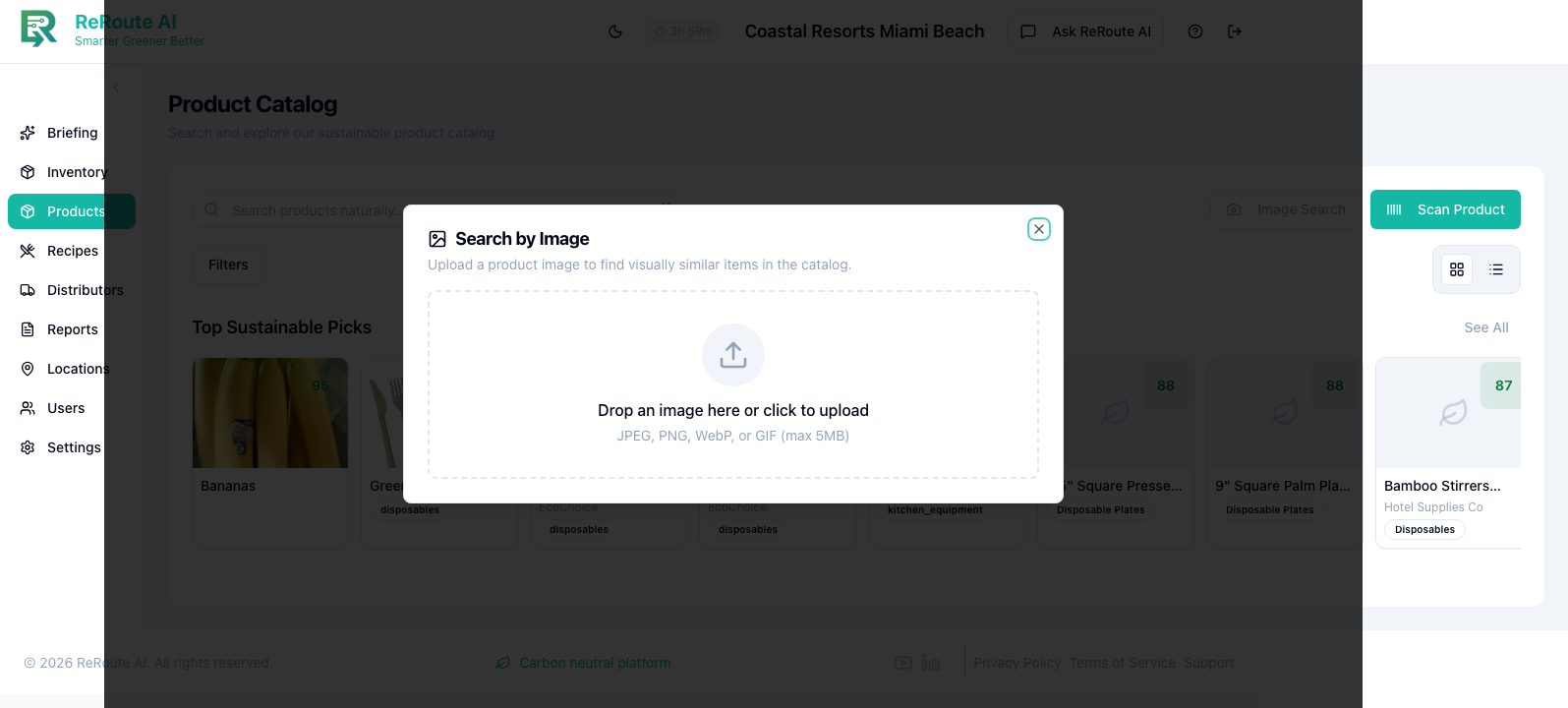
Click the Image Search button in the toolbar next to the search bar.
-
In the modal that appears, either:
- Drag and drop an image file into the upload area, or
- Click the upload area to browse your device and select a photo.
-
The AI analyzes your image and returns matching products from your catalog. Results show the product name, category, sustainability score, and how closely the image matched.
-
Click on any result to view the full product detail, including sustainability insights and eco-alternatives.
Tips for better results
- Use clear, well-lit photos with the product label visible.
- Crop the image to focus on a single product rather than a shelf of items.
- Photos of packaging, labels, or barcodes all work.
- If you do not get a match, try taking the photo from a different angle or with better lighting.
Image search is great for receiving deliveries. Snap a quick photo of each case as it arrives and the system will identify the product and show you where it belongs in your inventory.