How to Set Low Stock Thresholds
Low stock thresholds tell the system when to alert you that a product is running low. You set a threshold per product, and when the available quantity drops below that number, you receive a notification.
Steps
-
Click Inventory in the left sidebar.
-
Use the Location dropdown to select the location where you want to configure thresholds.
-
Click the settings gear icon on the product card you want to configure.
-
Find the Low Stock Threshold field and enter the quantity that should trigger an alert.
-
Click Save Threshold.
Choosing the right threshold
Set thresholds based on your daily usage rate and how long it takes to restock:
| Usage Pattern | Suggested Formula | Example |
|---|---|---|
| High daily demand | 2-day buffer x daily usage | 120 straws/day x 2 = threshold of 240 |
| Moderate demand | 2-3 day buffer x daily usage | 20 paper towels/day x 3 = threshold of 60 |
| Weekend-heavy items | Peak daily usage x lead time | 5 bottles/day Sat x 2-day reorder = threshold of 10 |
How alerts work
- Alerts trigger based on available quantity, not current quantity. This means items reserved for pending transfers are excluded, giving you a true picture of usable stock.
- Once triggered, alerts follow a 24-hour deduplication window -- you will not receive repeated alerts for the same product within 24 hours.
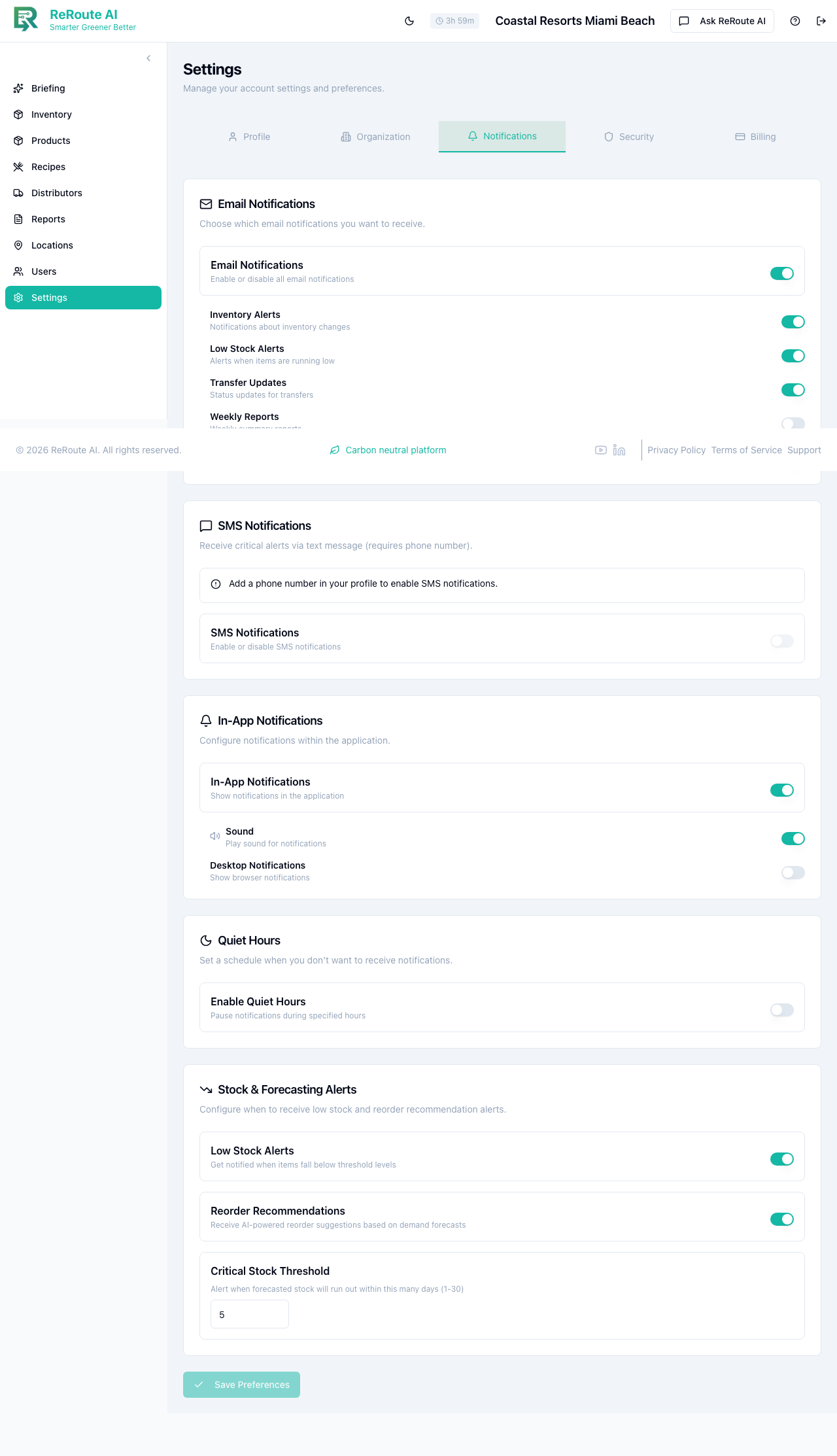
- You receive alerts through the channels you configured in Settings > Notifications (email, in-app, or both).
Check the Low Stock Alerts count on the Inventory summary card to see at a glance how many products are below their threshold at the current location. You can also open the Ask ReRoute AI panel and tap the Low Stock prompt to see all low stock items across locations.