How to Configure Notifications
Notification settings control how and when you receive alerts about low stock, transfers, reports, and sustainability updates. Configuring these preferences helps you stay informed without being overwhelmed.
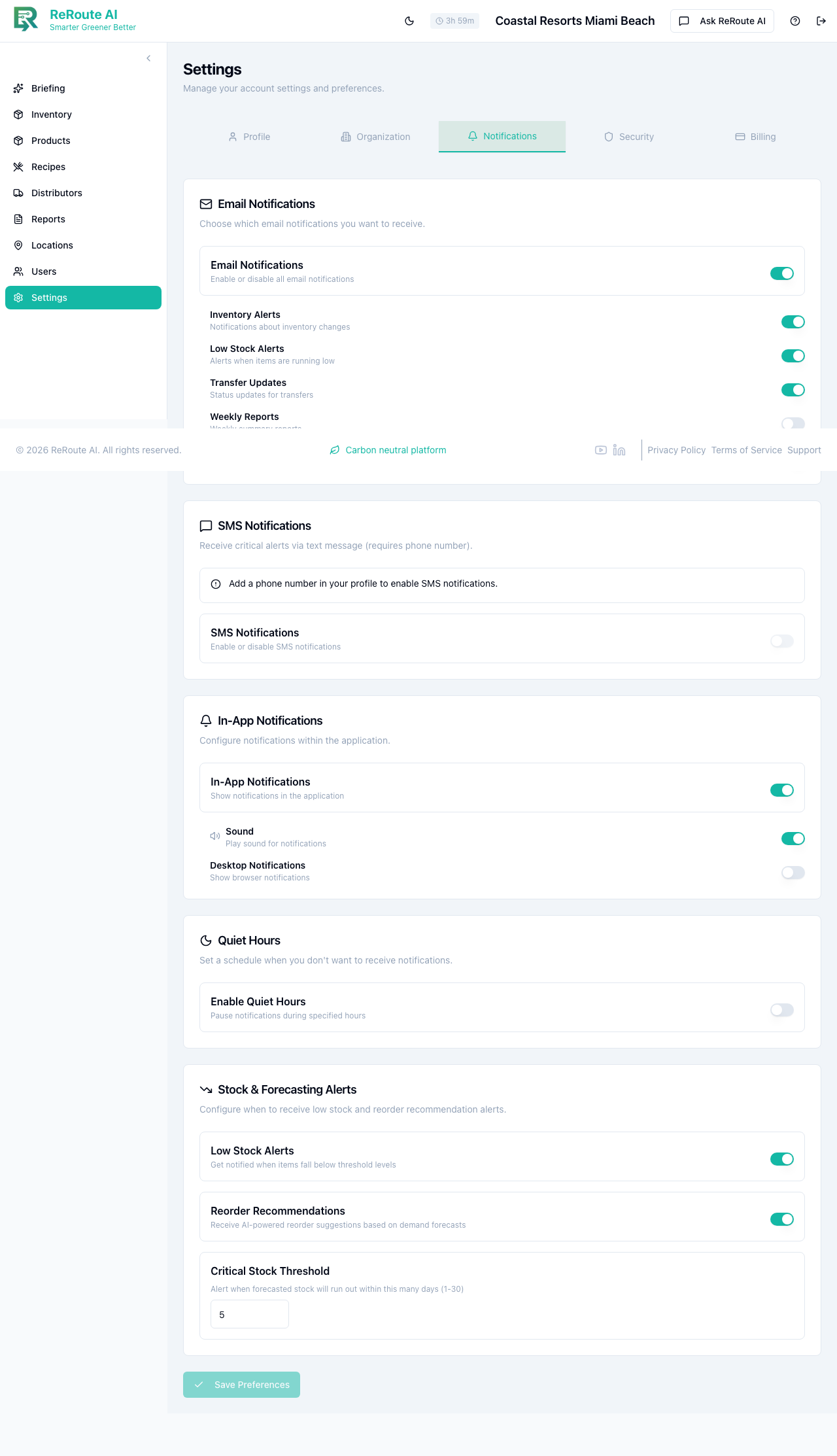
Steps
-
Click Settings in the left sidebar.
-
Navigate to the Notifications section.
-
Configure alerts for each category:
| Alert Type | Recommended Setting | Why |
|---|---|---|
| Low Stock Alerts | Email + In-App | Get notified immediately when products drop below their threshold. |
| Transfer Updates | In-App only | Stay informed about incoming and outgoing transfers without email clutter. |
| Report Ready | Receive scheduled reports directly in your inbox. | |
| Sustainability Alerts | Email (weekly digest) | Track sustainability score changes over time. |
-
Set quiet hours if you do not want notifications during off-hours. For example, suppress non-critical alerts between 10 PM and 6 AM.
-
Click Save Preferences.
Tips for managing notifications
- Start with more notifications enabled and dial back as you learn which ones matter most for your role.
- Low stock alerts are the most operationally important -- keep those enabled for both email and in-app at minimum.
- If you manage multiple locations, consider enabling transfer updates via email so you do not miss incoming shipments.
note
Notification preferences are per-user. Each team member can configure their own settings. Tenant Admins can configure alerts for their staff in addition to their own.