How to Place an Order
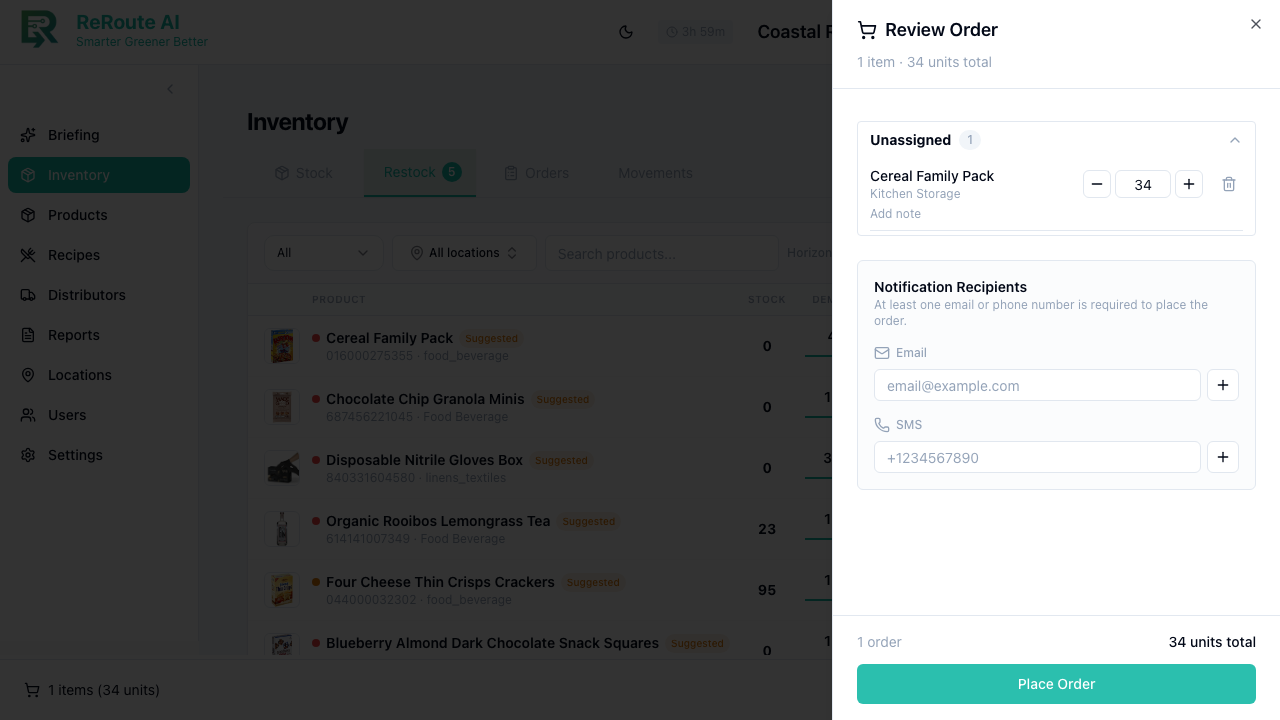
When your inventory is running low, you can place an order with one of your connected distributors. The system can pre-fill order quantities based on your current stock, par levels, and forecast data.
Prerequisites
You need at least one active distributor relationship. If you have not connected with any distributors yet, go to Distributors in the sidebar, click Find Distributors, and connect with the suppliers you work with.
Steps
-
Click Inventory in the left sidebar.
-
Find the product you need to reorder. You can check the Restock tab to see products that need replenishment, or look for items flagged in the Low Stock Alerts summary card.
-
Click on the product to open its detail view, then click Reorder from the action menu.
-
Review the pre-filled order form:
- Product -- the selected product name and UPC.
- Current Stock -- pulled from real-time inventory.
- Par Level -- the AI-recommended ideal quantity.
- Suggested Order Qty -- calculated from par level minus current stock plus a buffer.
- Distributor -- the default distributor for this product.
- Unit Price -- from the distributor catalog.
-
Adjust the quantity if needed. For example, you might order more than suggested if you know a busy event is coming up.
-
Click Submit Order.
Order lifecycle
After submission, your order progresses through these stages:
- Draft -- order created but not yet sent.
- Pending Confirmation -- sent to the distributor, awaiting their acceptance.
- Confirmed -- the distributor accepted the order.
- Processing -- the distributor is preparing the order.
- Out for Delivery -- products are in transit.
- Delivered -- delivery arrived and needs verification.
- Completed -- inventory updated and order closed.
An order may also be Cancelled, Rejected, or Expired, or land in Partially Fulfilled if only some items ship.
Track your orders on the Inventory > Orders tab.
Use the Restock tab to decide how much to order. If a product shows high stockout risk and a recommended reorder quantity, you can click directly from the forecast to create an order with the suggested amount.