How to Check Inventory Levels
Use the Inventory page to see exactly what you have in stock at each location, including available quantities, low stock alerts, and sustainability scores.
Steps
-
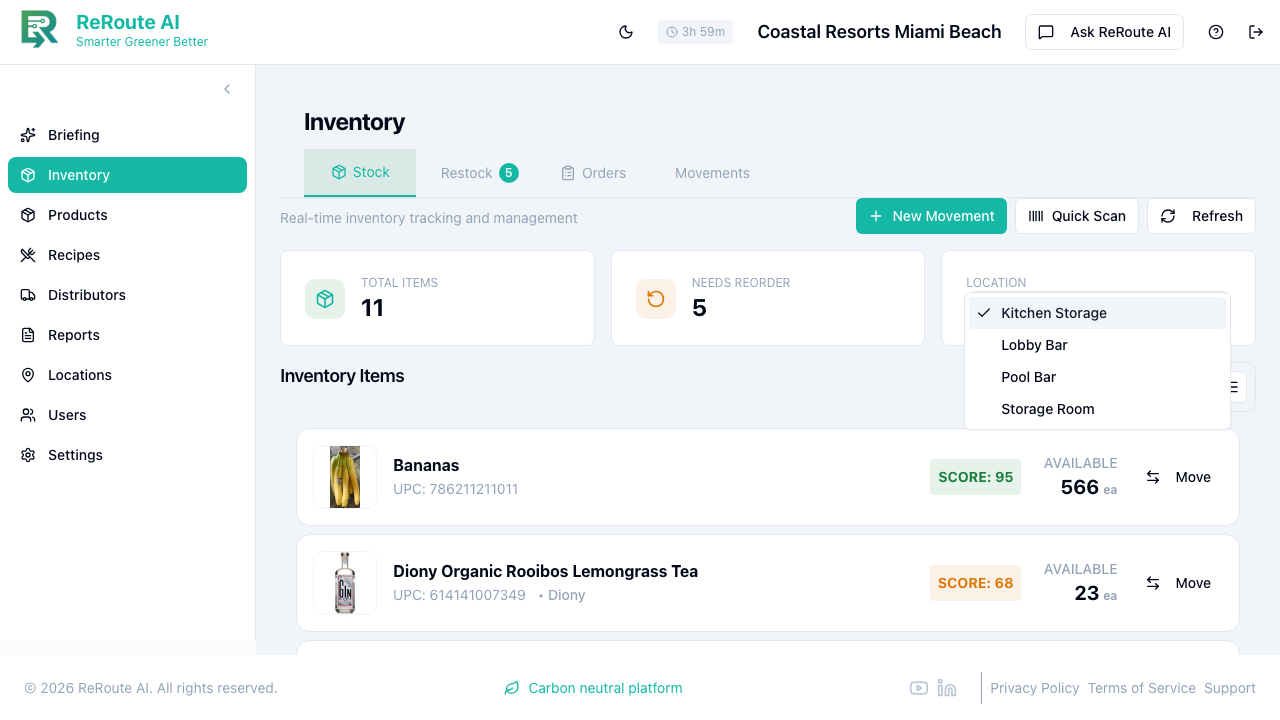
Click Inventory in the left sidebar. The Stock tab opens by default.
-
Look at the three summary cards across the top:
- Total Items -- the number of distinct products at this location.
- Low Stock Alerts -- how many products are below their threshold.
- Location -- the currently selected location.
-
Use the Location dropdown (top-right summary card) to switch between your locations. For example, switch from "Storage Room" to "Pool Bar" to see different inventory.
-
Browse your product cards. Each card shows:
- Product name and image
- UPC code and brand
- Sustainability score (color-coded: green = excellent, yellow = good, orange = average, red = poor)
- Available quantity
-
Toggle between grid view and list view using the icons next to "Inventory Items" for different layouts.
-
Explore the other tabs for additional views:
- Restock -- see products that need reordering.
- Forecast -- view demand predictions.
- Orders -- track submitted purchase orders.
The Available Quantity shown on each card equals your current stock minus any reserved items. If a transfer is pending, some units are reserved and cannot be used elsewhere. See the transfer guide for details.