First-Week Setup Checklist
Signing up gets you to your first login, and Welcome shows you the daily rhythm. This page covers the one-time setup in between — the steps a new admin does once to turn an empty account into a working property.
Work through it in order. Each step links to a full how-to. Most properties finish in a day or two of focused effort.
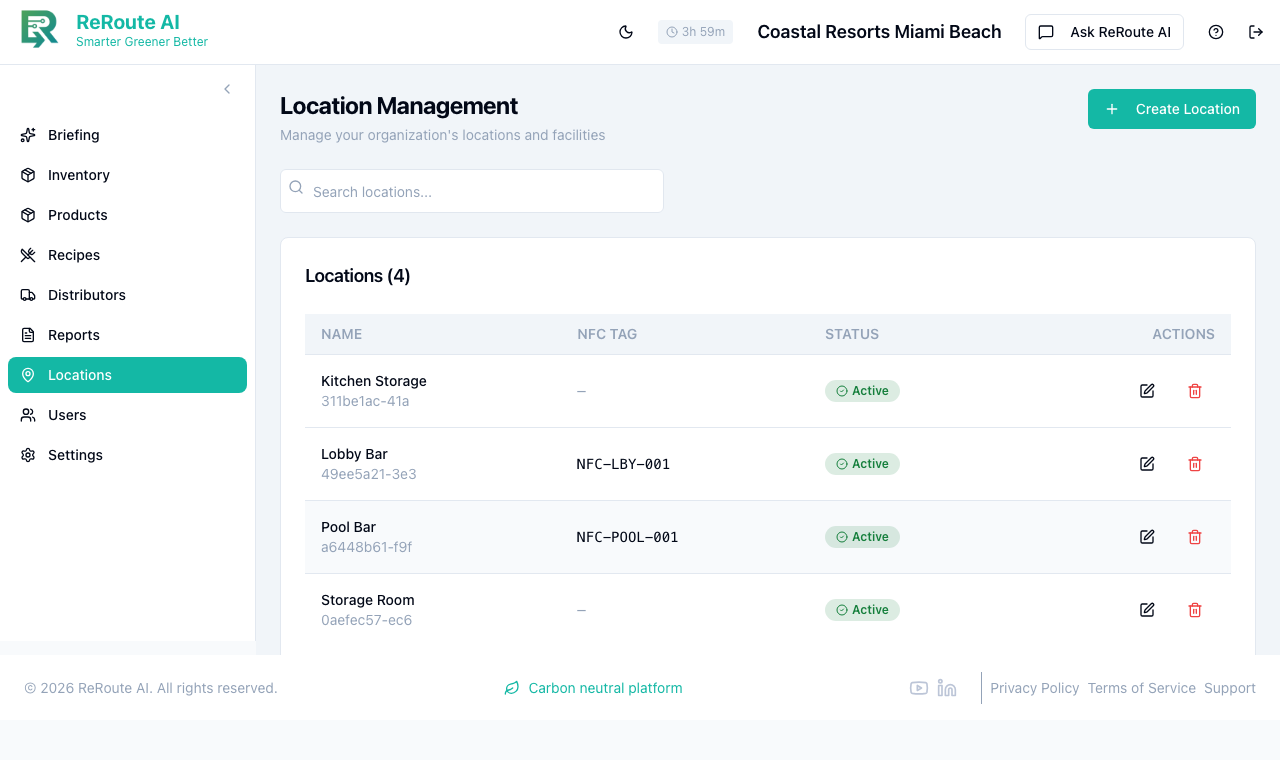
1. Set up your locations
Your locations are the physical areas you track stock in — a storage room, a walk-in, a bar, a kitchen line. Everything else (inventory, movements, forecasts) is organized by location, so start here.
- Add each location and its type.
- Assign an NFC tag to each location so staff can scan to move stock (see step 4).
2. Invite your team and set roles
Add the people who'll use ReRoute AI and give each the right role — staff, location manager, or admin. Roles control what each person can see and do.
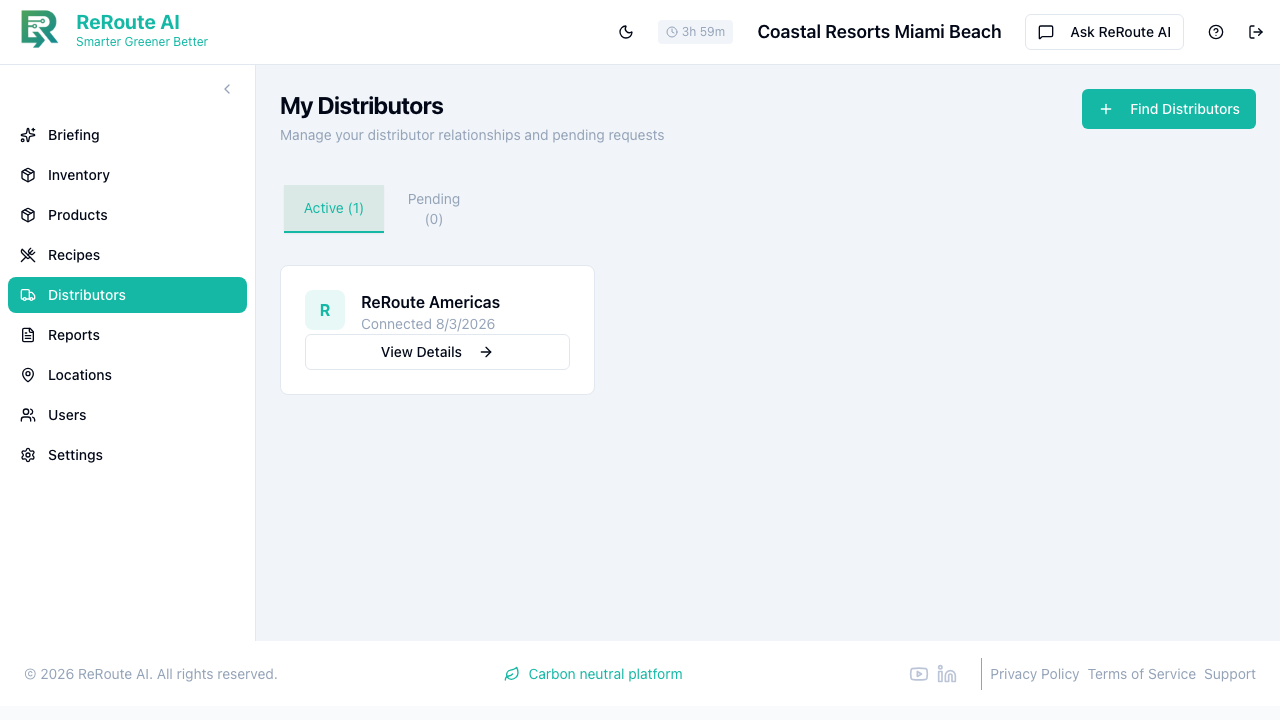
3. Connect your distributors
Add the suppliers you order from. An active distributor relationship is required before you can place restock orders, and it's what powers auto-reorder later.
→ Distributor Management · Place an Order
4. Get product into inventory
Now put real stock on the books so forecasts and scores have data to work with. Two ways:
- Receive a delivery — record incoming product as an IN movement, via the Movement Wizard or Quick Scan at the dock.
- Scan an order — snap a photo of a paper invoice or packing slip and let the AI extract the line items.
→ Receive Inventory · Scan an Order · Scan with NFC
Inventory scanning and NFC transfers happen in the mobile app. If you haven't installed it yet, see The Mobile App.
5. Set your alert thresholds and notifications
Tell the platform when to warn you about low stock, and choose how you want to be notified.
→ Set Low-Stock Thresholds · Configure Notifications
6. Run your first briefing
With locations, team, distributors, and stock in place, open the Briefing page and click Generate today's briefing. The AI now has enough data to tell you what needs attention — low stock, reorder suggestions, forecasts, and sustainability highlights.
Managing multiple properties?
If you're a corporate admin rolling up several properties or brands, set up the hierarchy first.
Once these are done, you're in the daily loop described in Welcome: forecast → order/transfer → cut waste → measure carbon → report. The more consistently you scan and record movements, the sharper the forecasts and the more accurate your carbon number becomes.