Distributor Management & Auto-Reorder
ReRoute AI connects you directly with your food service distributors so you can browse catalogs, place orders, and track deliveries without leaving the platform. For high-volume items with predictable demand, you can also set up auto-reorder to keep stock replenished automatically.
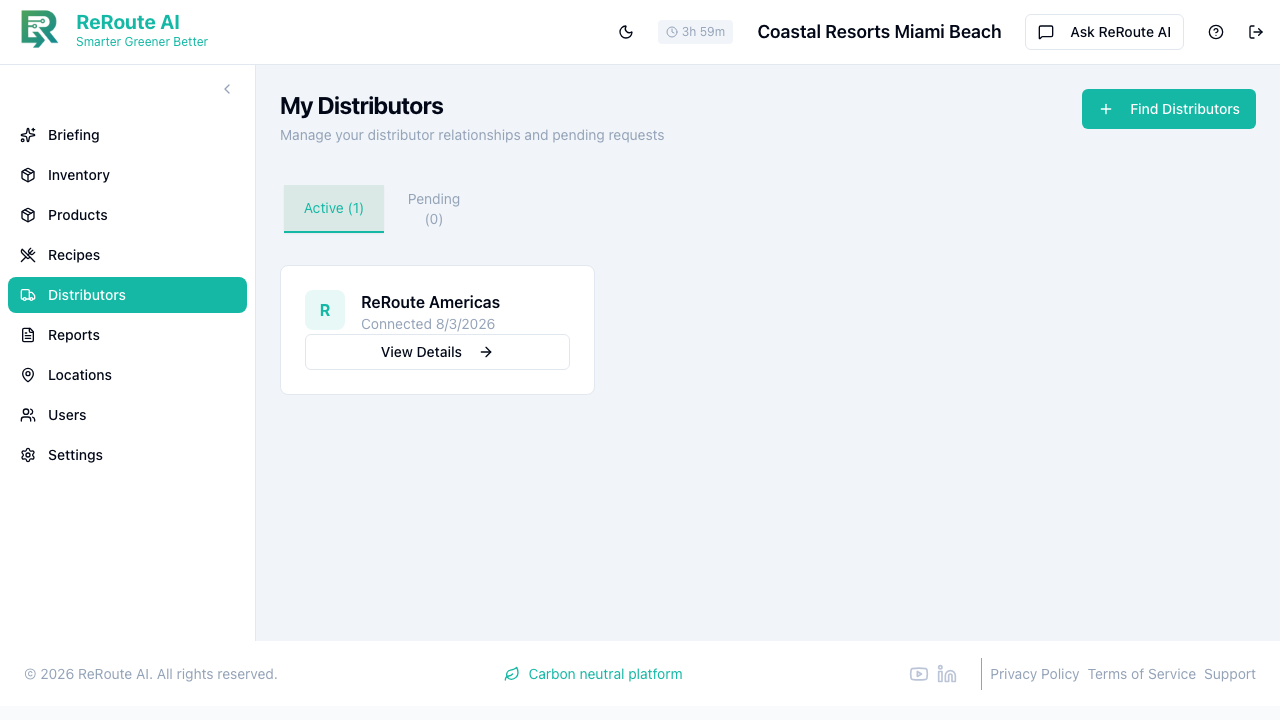
Adding and Managing Distributors
Before you can place orders, you need to establish a relationship with a distributor. Here is how the process works:
- Browse the distributor directory. ReRoute AI includes a directory of food service distributors, organized by category (broadline distributors, specialty suppliers, sustainable packaging vendors, and more). You can filter by category, market segment, or search by name.
- Request a relationship. When you find a distributor you want to work with, send a relationship request. This notifies the distributor that your organization wants to place orders through the platform.
- Distributor accepts. Once the distributor accepts your request, the relationship becomes active and you can start placing orders.
- View your active distributors. The "My Distributors" section shows all distributors you have an active relationship with, along with their contact information and order history.
An active relationship is required before you can place any orders. This ensures that pricing, delivery terms, and account details are set up properly between your organization and the distributor.
Order Lifecycle
Every order follows a standard lifecycle from creation to completion:
| Stage | What Happens |
|---|---|
| Draft | You are building the order. Add line items, adjust quantities, and review before submitting. |
| Pending Confirmation | The order has been submitted to the distributor and is waiting for them to confirm availability and pricing. |
| Confirmed | The distributor has confirmed the order. Items are being prepared for shipment. |
| Processing | The distributor is assembling and packing the order. |
| Out for Delivery | The order is on its way to your location. |
| Delivered | The shipment has arrived. Review the delivery to make sure everything is correct. |
| Completed | You have confirmed receipt and the order is closed. Inventory is updated automatically. |
| Cancelled | The order was cancelled before completion, either by you or the distributor. |
You can track the status of all your orders from the Inventory > Orders tab, filter by distributor or date range, and view detailed line items for any order.
When to Use Auto-Reorder
Auto-reorder is best suited for high-volume consumables with predictable, steady demand. Good candidates include:
- Disposable gloves, napkins, and paper towels
- Cleaning supplies used at a consistent daily rate
- Beverages and condiments with stable consumption patterns
Auto-reorder works less well for items with highly variable demand (seasonal products, event-driven items) or products where you want to make case-by-case decisions about brands or quantities.
Setting Up Auto-Reorder
To enable auto-reorder for a product:
- Navigate to the product in your inventory.
- Enable the auto-reorder toggle.
- Set the reorder quantity -- how many units to order each time.
- Make sure the product is linked to an active distributor.
When your available quantity drops below the product's low stock threshold, the system automatically creates a reorder. You can review auto-generated orders before they are submitted, or configure them to submit automatically based on your preference.
Auto-Reorder Requirements
- The product must have an active distributor relationship -- the system needs to know who to order from.
- A reorder quantity must be set (at least 1 unit).
- The product's low stock threshold must be configured to trigger the reorder at the right time.
Tips for Effective Distributor Management
- Review order history regularly. Check your past orders to spot trends in spending and identify opportunities to consolidate orders or negotiate better pricing.
- Keep distributor contact info updated. Make sure email addresses and phone numbers are current so delivery notifications reach the right people.
- Combine orders when possible. Placing fewer, larger orders often reduces shipping costs and simplifies receiving.
- Use the Restock tab with forecasting. Pair your demand forecasts with the restock workflow to order the right quantities at the right time and reduce both waste and stockouts.